 ClockWork manual
Administration
Bringing data from another system, the audit trail, the business settings, and who may do what.
10.1Bringing your data from another system
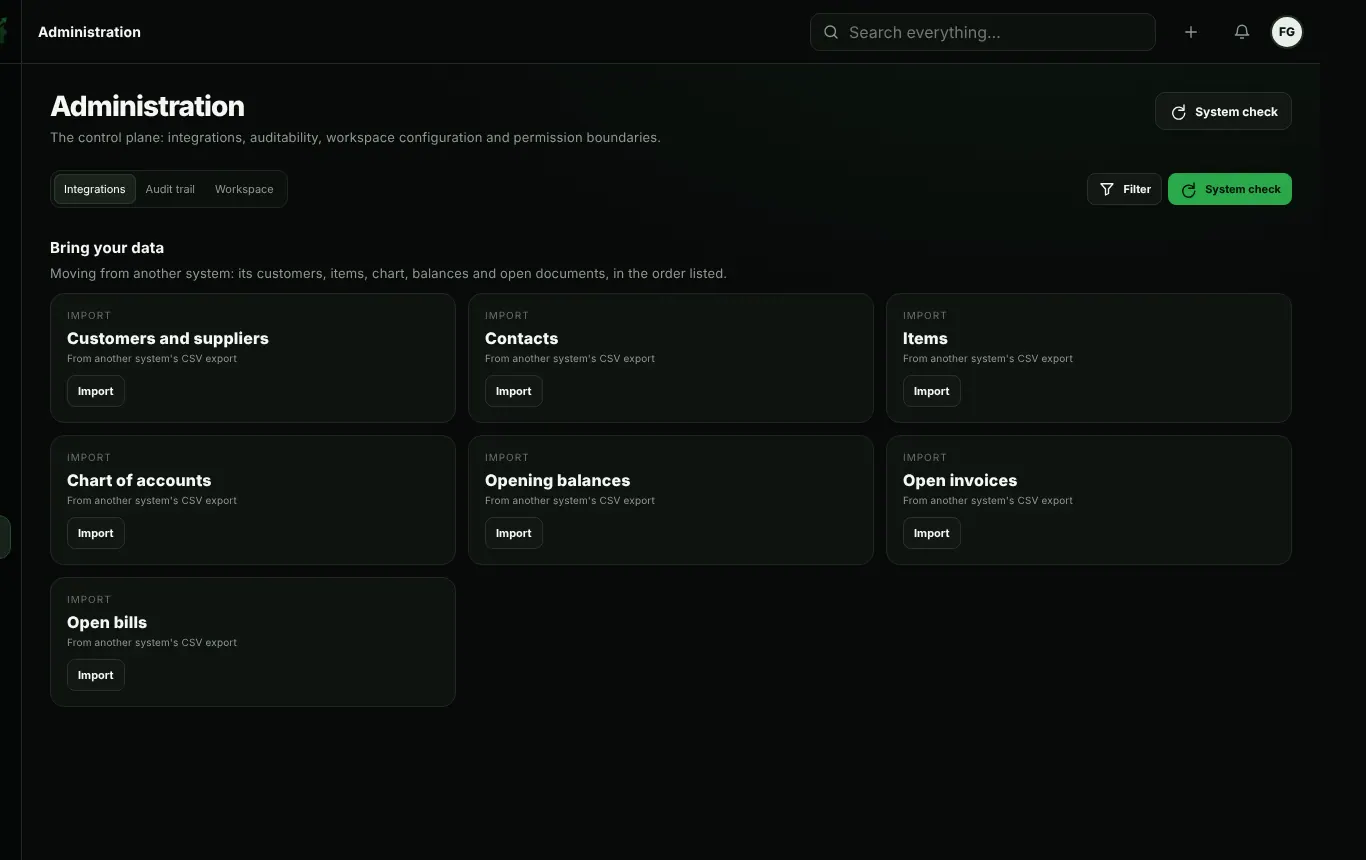
Moving from another system is done with CSV exports from it, imported in this order so that each step finds what the one before created: Customers and suppliers, Contacts, Items, Chart of accounts, Opening balances, Open invoices, Open bills.
- Export the list from the old system as CSV.
- Open Administration, then Integrations, and choose Import on that list.
- Paste or choose the file, check the preview and choose Import.
- When all lists are in, choose System check. It checks that every journal balances, that no document points at a missing customer or supplier, that no item has negative stock, that the bank is reconciled, and that the capability profile is set; anything to look at is marked Review.
10.2Audit trail
Every change is recorded with its time, who made it, what was done and to which record. Open Administration, then Audit trail. The trail cannot be edited.
10.3Business settings
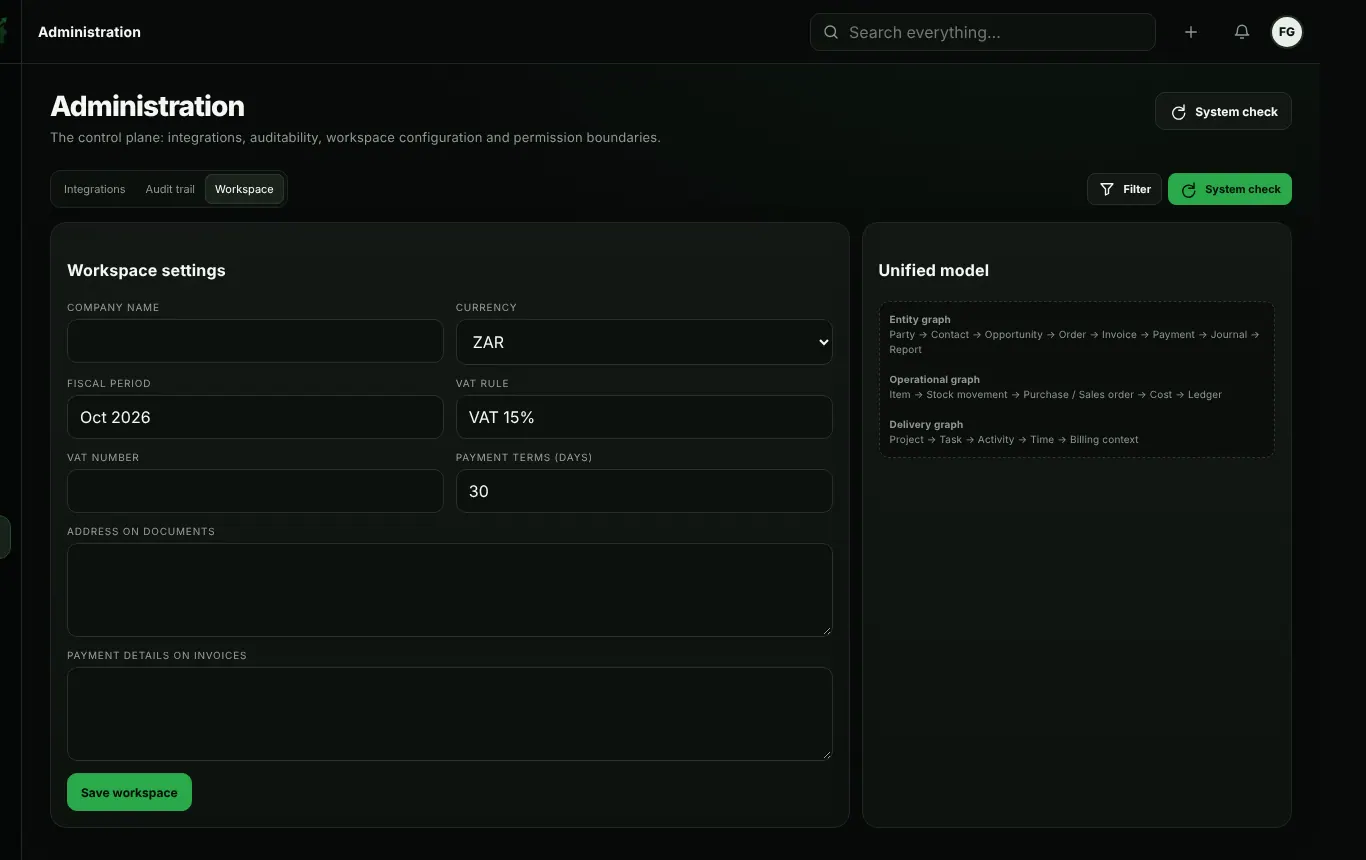
Under Administration, Workspace holds the Company name, the Currency, the Fiscal period, the VAT rule and VAT number, the Payment terms in days, the Address on documents and the Payment details on invoices. Choose Save workspace after changing them.
10.4Members and roles
People who work in the business sign in with their own Ocalt accounts. The owner adds them in Ocalt Business (business.ocalt.com) under the business's members, on any plan, and gives each one roles. A role decides which modules a member can open and what they may change: a clerk can enter bills without being able to approve them, and an employee sees only My HR. ClockWork checks every change against the member's roles when it is saved, so a refused change is put back and explained.
10.5Secondary sync
ClockWork keeps your books in your Ocalt namespace. Secondary sync keeps a second copy of them somewhere else as well: on a drive you added in Ocaltio (an FTP or SFTP server, a WebDAV drive, an S3 bucket or a machine drive) or in a folder on one of your linked machines. It is off until you turn it on, and you can turn it off at any time.
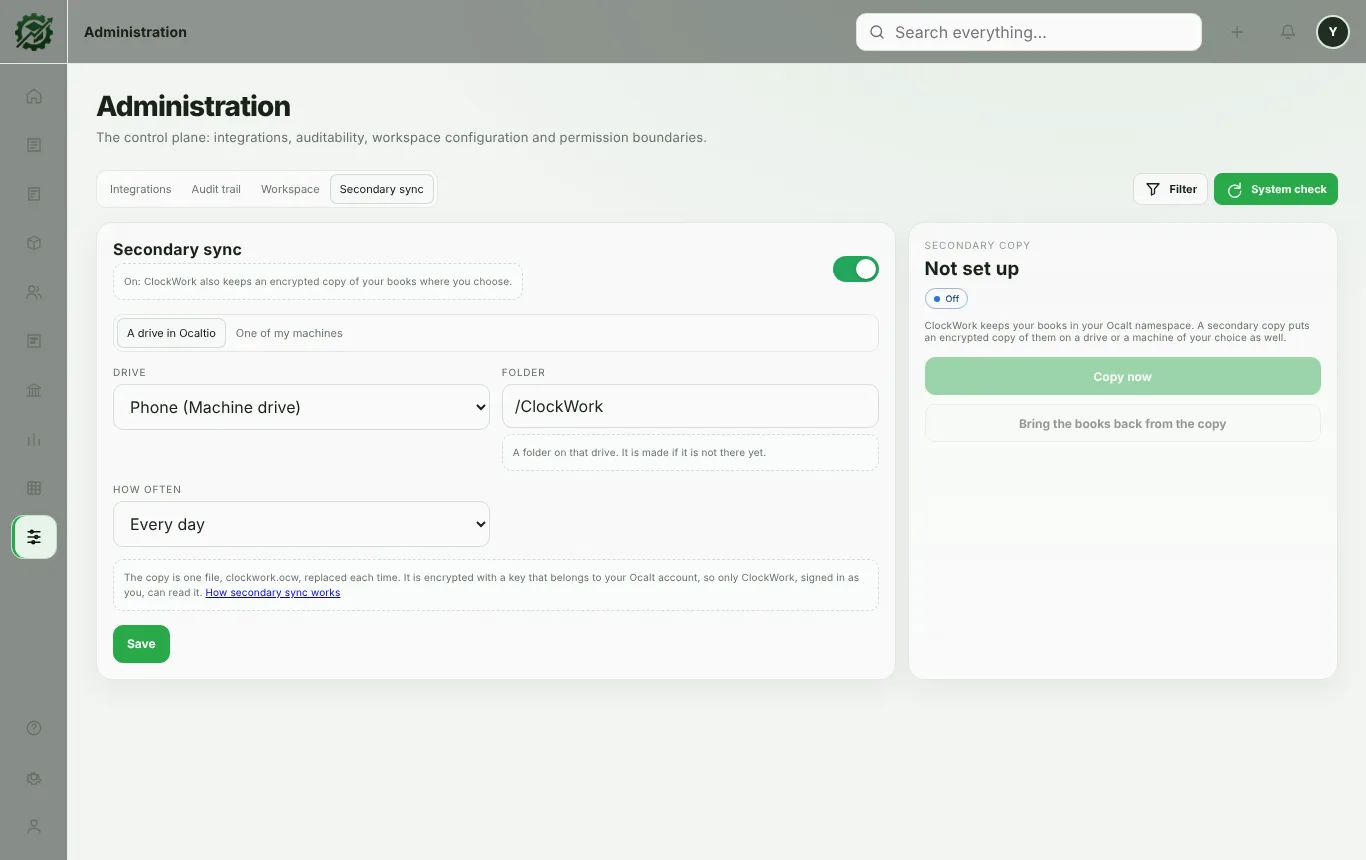
Turn it on
- Open Administration, then Secondary sync.
- Turn on the Secondary sync switch.
- Choose A drive in Ocaltio or One of my machines, then the drive or machine.
- Type the Folder the copy goes in, such as /ClockWork.
- Choose How often: every hour, every 6 hours, every day, every week, or only when you press Copy now.
- Choose Save, then Copy now to make the first copy. The panel on the right shows when the last copy was made and how big it is, or why it failed.
What the copy is
- One file, clockwork.ocw, in the folder you chose. Each copy replaces the one before, so the folder always holds your latest books.
- Every customer, supplier, invoice, bill, journal, item, employee and setting ClockWork keeps.
- Encrypted with a key that belongs to your Ocalt account. Anyone who opens the file elsewhere sees only scrambled data; only ClockWork, signed in as you, can read it.
Bring the books back
If your books are damaged or something was deleted by mistake, choose Bring the books back from the copy and confirm. ClockWork reads the copy from its drive or machine and replaces every record with it. Anything changed since the copy was made is lost, so check the time of the last copy first.
Turn it off
Turn off the Secondary sync switch. No more copies are made, and the schedule is removed at once. The last copy stays where it is until you delete it yourself.
Only the business owner can set up secondary sync and bring books back from it. A drive or machine must be reachable when a copy is due: a machine that is switched off, or a drive whose password changed, shows as Failed with the reason, and the next copy tries again.