 ClockWork manual
Getting started
What ClockWork is, how to open it, and how its screens are laid out. Read this first, whatever your role.
1.1What ClockWork is
ClockWork is the business system of Ocalt: the books, sales, stock, people and payroll, projects, banking and reports of one business, kept in one place. Every record belongs to the business it was made for and is saved in that business's own Ocalt namespace. Nothing is copied into a second database to make a report: reports read the same records the clerks enter.
Records are linked to each other. A customer account carries its invoices, quotes, orders, payments and activities; an invoice carries its lines, VAT, payments and the journal it posted. You can move from any record to the records around it without searching again.
1.2Opening ClockWork
- Go to clockwork.ocalt.com. Signed out, you see the product page; choose Sign in and sign in with your Ocalt account.
- Signed in, ClockWork opens straight to the app. On a phone or tablet you can install it from the browser menu (Add to Home screen or Install app); it then opens like any other app.
- If you work for more than one business, choose the business from Your account in the top right. Everything you see and change from then on belongs to that business.
1.3The screen
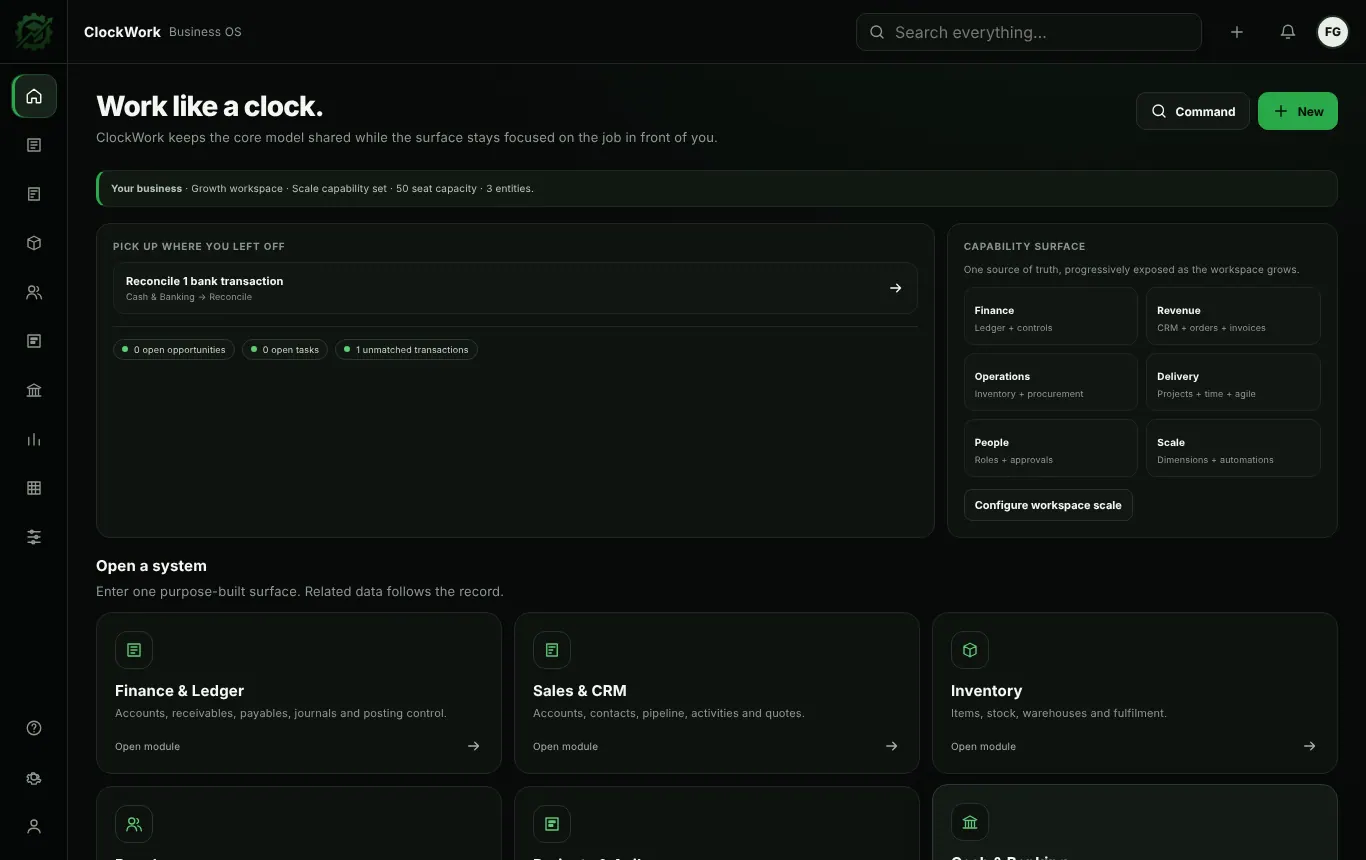
- The rail (left edge) holds Home and one button per module: Finance & Ledger, Sales & CRM, Inventory, People, Projects & Agile, Cash & Banking, Reports, Sheets and Administration. Point at a button to see its name.
- The top bar shows where you are, Search everything, the + button for creating anything, the notification bell and your account.
- Tabs under a module's title move between its screens, for example Chart of accounts, Receivables, Payables, Journal and Periods in Finance.
- Records open over the screen. A record shows its figures, its timeline, the actions you may take and its lines. Close or the Escape key returns you to the list; the browser's Back button does the same.
- On a phone the rail becomes a bar along the bottom with Home, Sales, Ledger, Inventory and Projects; the other modules are reached from Home.
1.4Finding and creating things
- Search everything (or Ctrl+K, Cmd+K on a Mac) finds customers, suppliers, invoices, bills, items, people, projects and tasks by name or number, and opens them.
- + in the top bar, or New on Home, opens Create something: New account, New invoice, New opportunity, Log activity, New inventory item, New project, New task and Add person. Each opens the form made for that one job.
- Every list has Filter, which narrows the list to the words you type.
1.5Statuses, posting and control
Documents (quotes, orders, invoices, bills, pay runs) start as drafts and move through statuses. A draft can be edited freely. When a document is posted it becomes part of the books: its journal is written, balanced, and cannot be edited afterwards. A mistake in posted figures is corrected with a new, correcting journal (see Periods and adjustments), so the history of the books is never rewritten.
Seeing a record does not give you the right to post, pay or close it. What each person may do is set by the business owner (see Members and roles).