 ClockWork manual
Role G
Payroll administrator
Running pay correctly under each country's rules, posting it and making the filings.
G.1Before the run
- Make sure starters, leavers and changes in salary, allowances, deductions and benefits are on each person's record.
- Check Time for overtime in the period and Leave for unpaid leave.
- Check each entity's country rules are for the current tax year in Countries and entities.
G.2The pay run
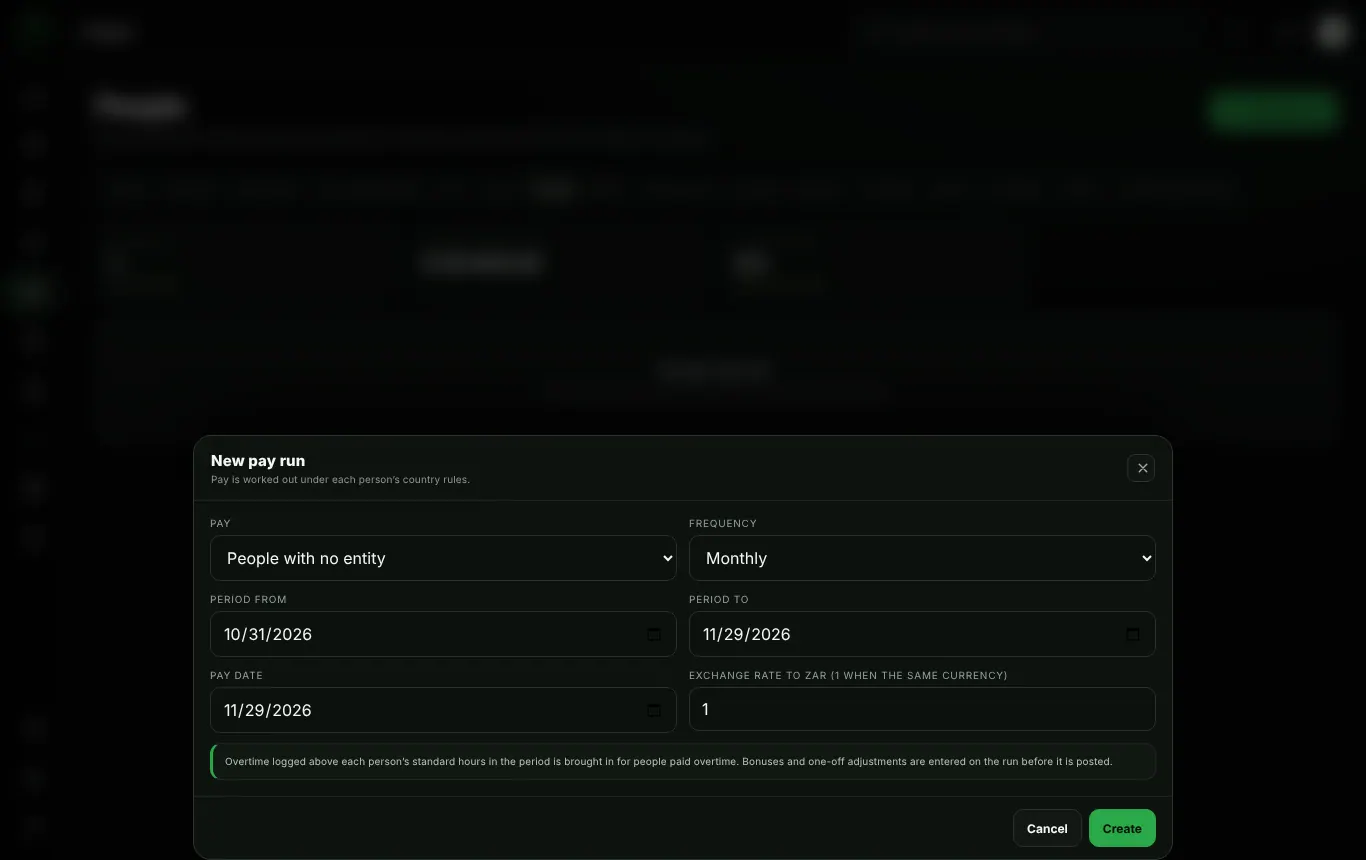
- Open People, Payroll, New pay run.
- Choose the entity, the frequency, the period, the pay date and the exchange rate if the entity pays in another currency. Choose Create.
- Check each person's gross, income tax, contributions, deductions and net pay. Enter any bonus or one-off adjustment and choose Recalculate.
- Have the run checked by a second person, then choose Post to the books.
- Pay the net wages from the bank and the tax and contributions by their due dates, and record those payments.
G.3Paying wages through your bank
Once a run is posted, ClockWork makes the bulk payment file your bank imports, so nobody types account numbers into internet banking.
- Check that each person's record has their Bank, Branch code, Account number, Account type (cheque, savings or transmission) and, when it is not their own name, the Account holder. Once saved, an account number is only shown as its last four digits. To change it, type the new number; leave the field empty to keep the one on file.
- Open the posted pay run and choose Prepare bank batch.
- Choose the bank account the wages are paid from. The first time, enter its Branch code and Account number; they are kept on the bank account and shown masked after that. Choose the Payment date and the File format (see 7.4).
- ClockWork checks every person. Anyone with no branch code, account number or account type, or with nothing to pay, is listed and left out until fixed. Choose Prepare. The batch is saved as Awaiting approval with the number of payments, the total and each person's masked account.
- A second person with payroll access opens the run, checks the batch against it and chooses Approve. ClockWork records who approved it and when. If you work alone you can approve your own batch; the audit log shows it was the same person.
- After approval choose Download file and upload it in your bank's bulk or batch payment screen, or let your banking or accounting software collect it through the connector (7.5). When the bank has paid, choose Record wages paid.
- A batch that is wrong can be Cancelled until it is collected. Then prepare a new one.
Full account numbers are never written to the batch, the audit log or the webhook. They are read from the people's records only when the file is made, and a file held for the connector is erased once it is collected or cancelled.
G.4Filings
- After posting, the period's return appears in Filings with the amounts to declare and pay.
- Submit it to the tax authority by the due date.
- At year end, choose Prepare certificates for the employee tax certificates (IRP5 and IT3(a) in South Africa) and issue them to employees.