 ClockWork manual
Finance and Ledger
The chart of accounts, invoices to customers, bills from suppliers, the journal and the accounting periods.
2.1Chart of accounts
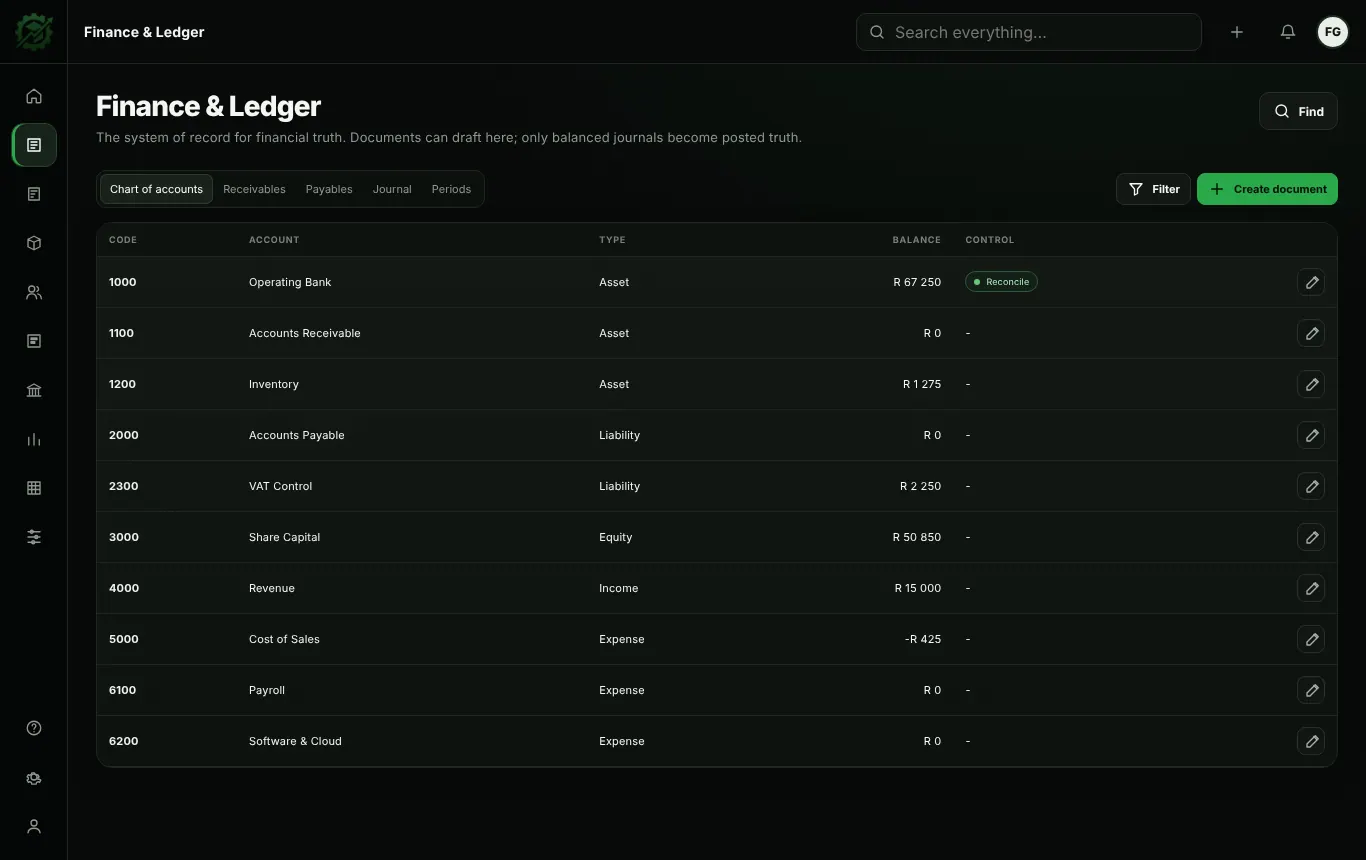
The chart lists every ledger account with its code, name, type (Asset, Liability, Equity, Income or Expense) and balance. ClockWork starts with a working chart (bank 1000, receivables 1100, inventory 1200, payables 2000, VAT control 2300, share capital 3000, revenue 4000, cost of sales 5000, payroll 6100, software and cloud 6200 and others) that documents post to by default.
- Open Finance & Ledger and choose Chart of accounts.
- Choose Create document. The form is New ledger account.
- Enter the Code, the Name and the Type, then Save.
2.2Invoices (receivables)
An invoice is a receivable: money a customer owes. It belongs to a customer account, carries lines and VAT, and posts to the revenue account chosen on it and to accounts receivable.
- Make sure the customer exists (Sales & CRM, Accounts). ClockWork asks you to add a customer first if there is none.
- Open Finance & Ledger, choose Receivables, then Create document.
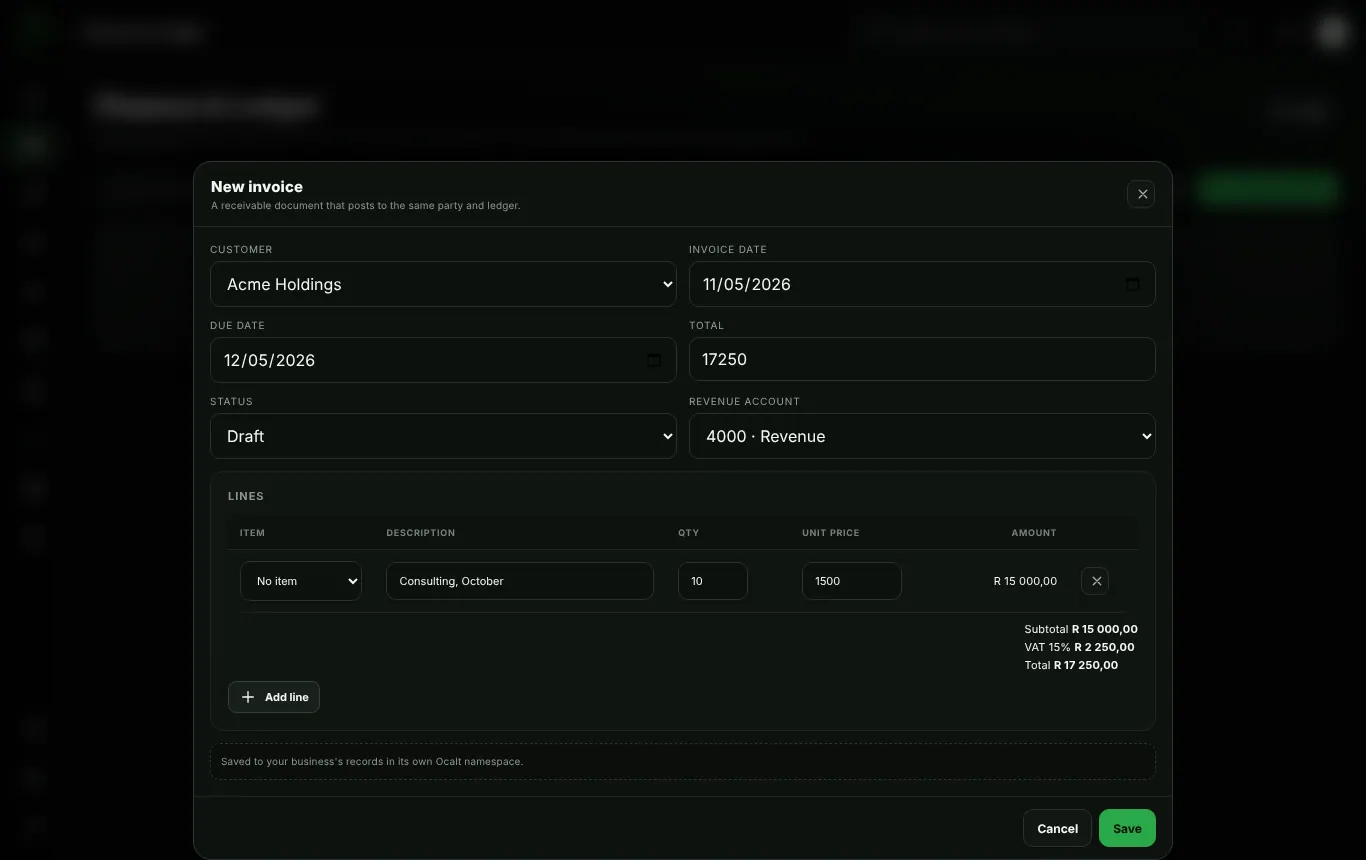
- Choose the Customer. The Invoice date is today and the Due date follows the payment terms in the business settings; change either if needed.
- Choose Add line for each thing sold: a description, the quantity and the unit price. The subtotal, VAT and total are worked out as you type. With no lines, the invoice carries the Total you enter.
- Leave the Status on Draft while it is being prepared; choose the Revenue account if it is not the usual one.
- Save. The invoice appears in Receivables with its number.
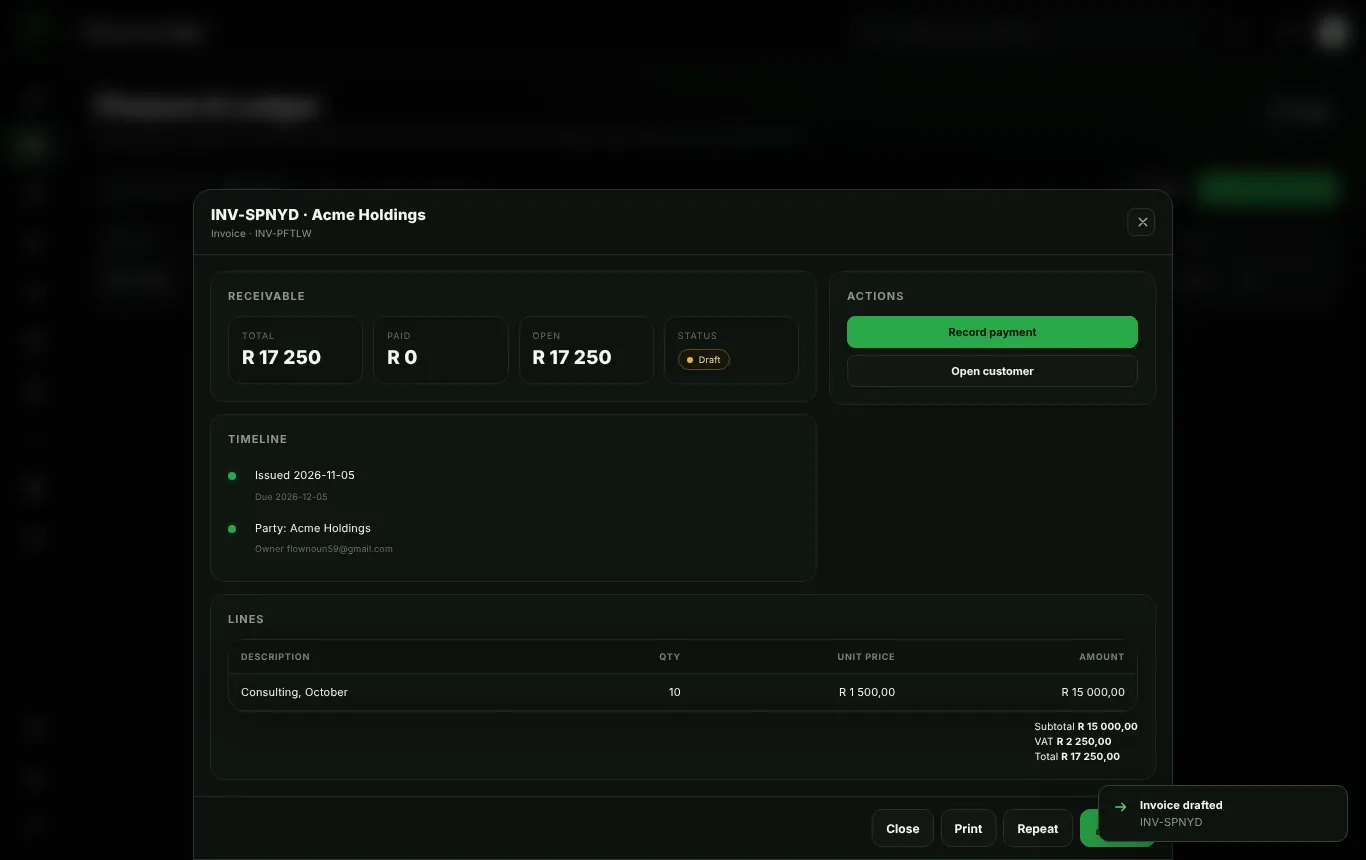
Open an invoice to see its total, what has been paid and what is still open, its timeline and its lines. Its actions are Record payment, Open customer, Print (a printable invoice with the address and payment details from the business settings), Repeat (make it a recurring invoice) and Edit.
2.3Recording a customer payment
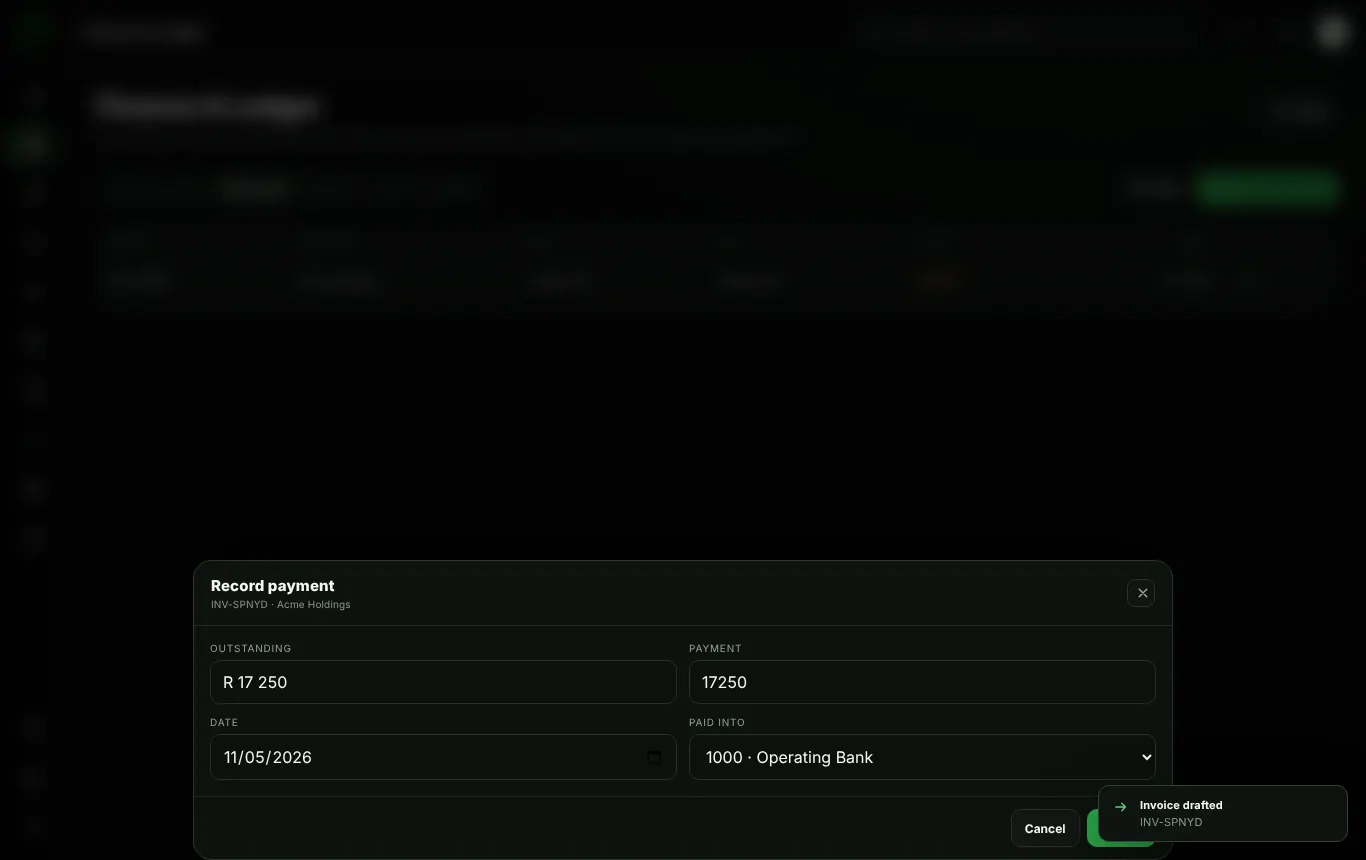
- Open the invoice and choose Record payment.
- The Outstanding amount is shown. Enter the Payment received (part payments are allowed), the Date and the bank account it was Paid into.
- Choose Record. The invoice's Paid and Open figures change, the payment is posted to the bank and to receivables, and a fully paid invoice shows as Paid.
2.4Bills (payables)
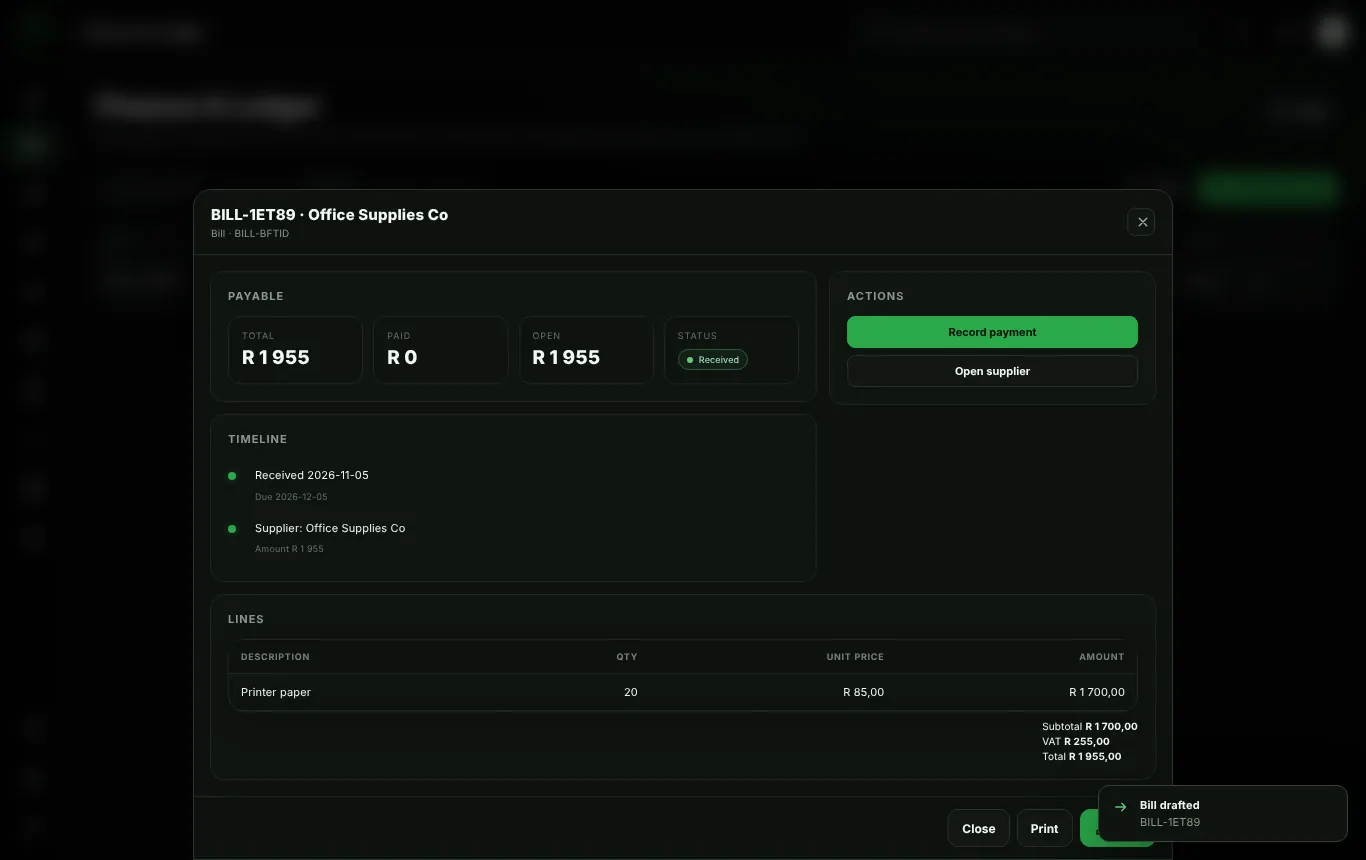
A bill is a payable: money the business owes a supplier. It stays attached to its supplier until it is settled, and moves through Received, Approved, Due and Paid.
- Make sure the supplier exists (Sales & CRM, Accounts, with the supplier role).
- Open Finance & Ledger, choose Payables, then Create document.
- Choose the Supplier, the Bill date and the Due date, add a line for each item billed, and choose the Expense account it belongs to (an asset account for equipment).
- Save. The bill is Received and waits for approval in People, Approvals (see below).
- When it is paid, open it and choose Record payment, as for an invoice.
2.5Approving bills
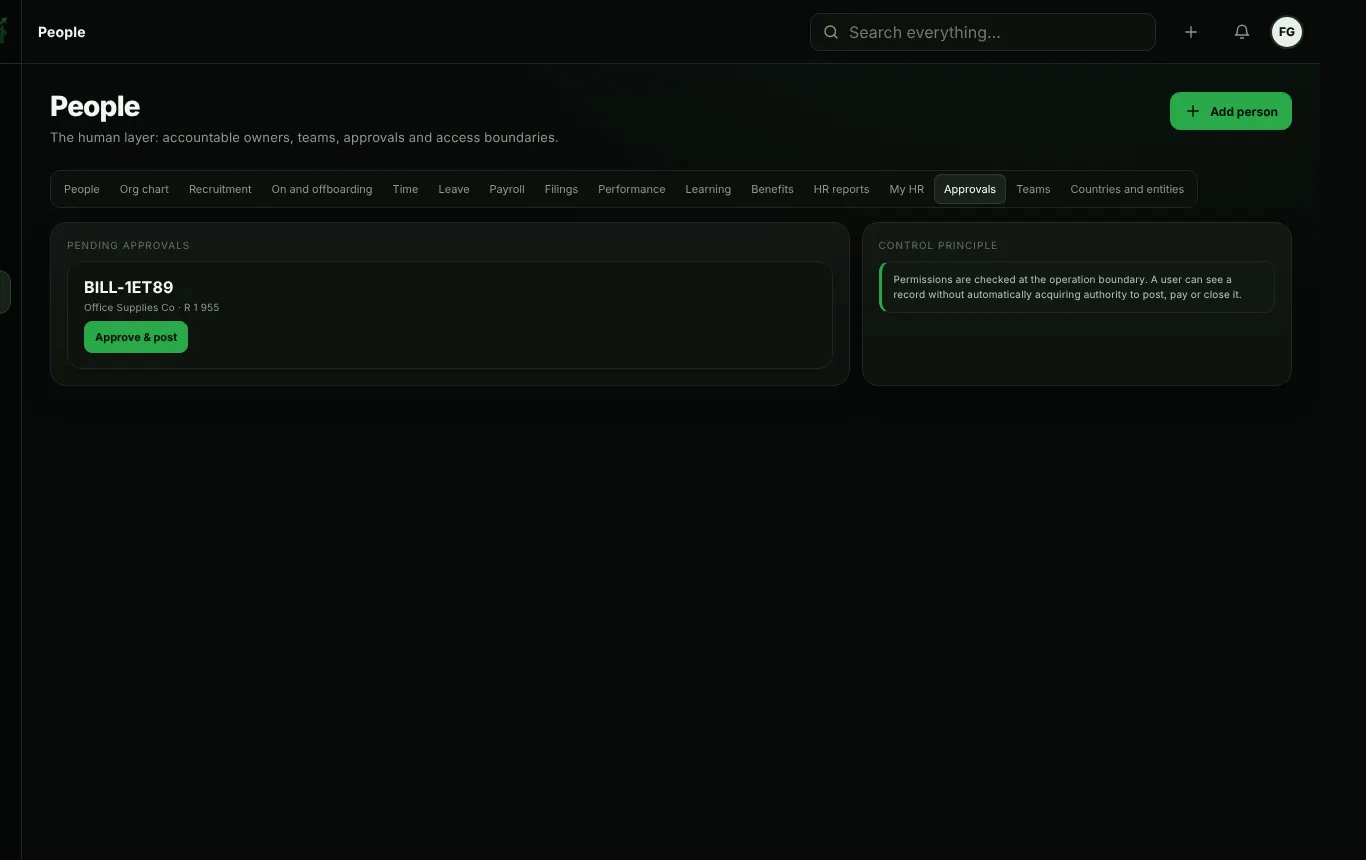
- Open People and choose Approvals.
- Each bill waiting is listed with its supplier and amount. Open it to check it.
- Choose Approve & post. The bill posts to the books and is ready to be paid.
2.6The journal
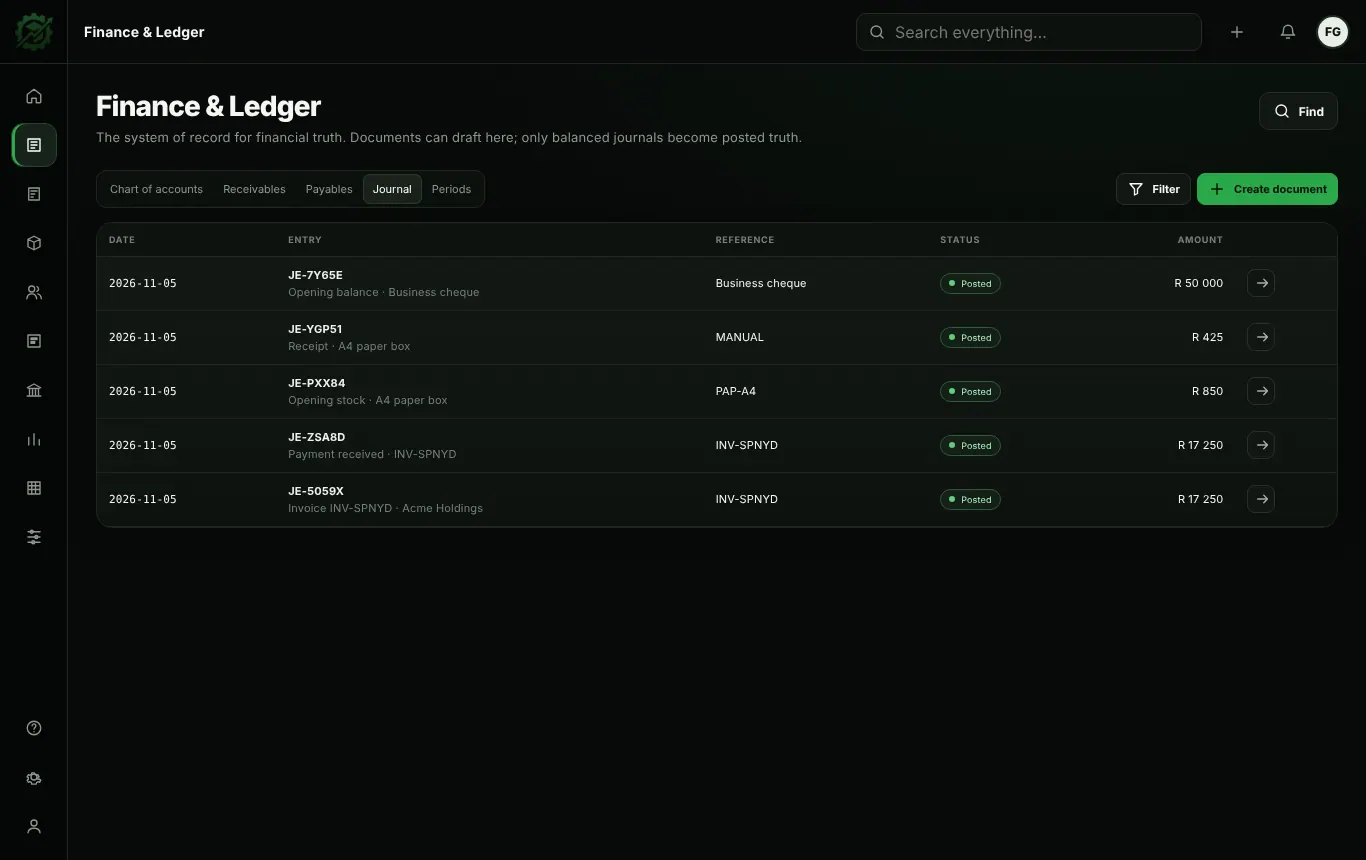
The journal lists every posted entry, from every module: invoices, payments, bills, stock, pay runs and adjustments. Each entry is balanced (its debits equal its credits). Entries cannot be edited or deleted; a correction is a new entry.
2.7Periods and adjustments
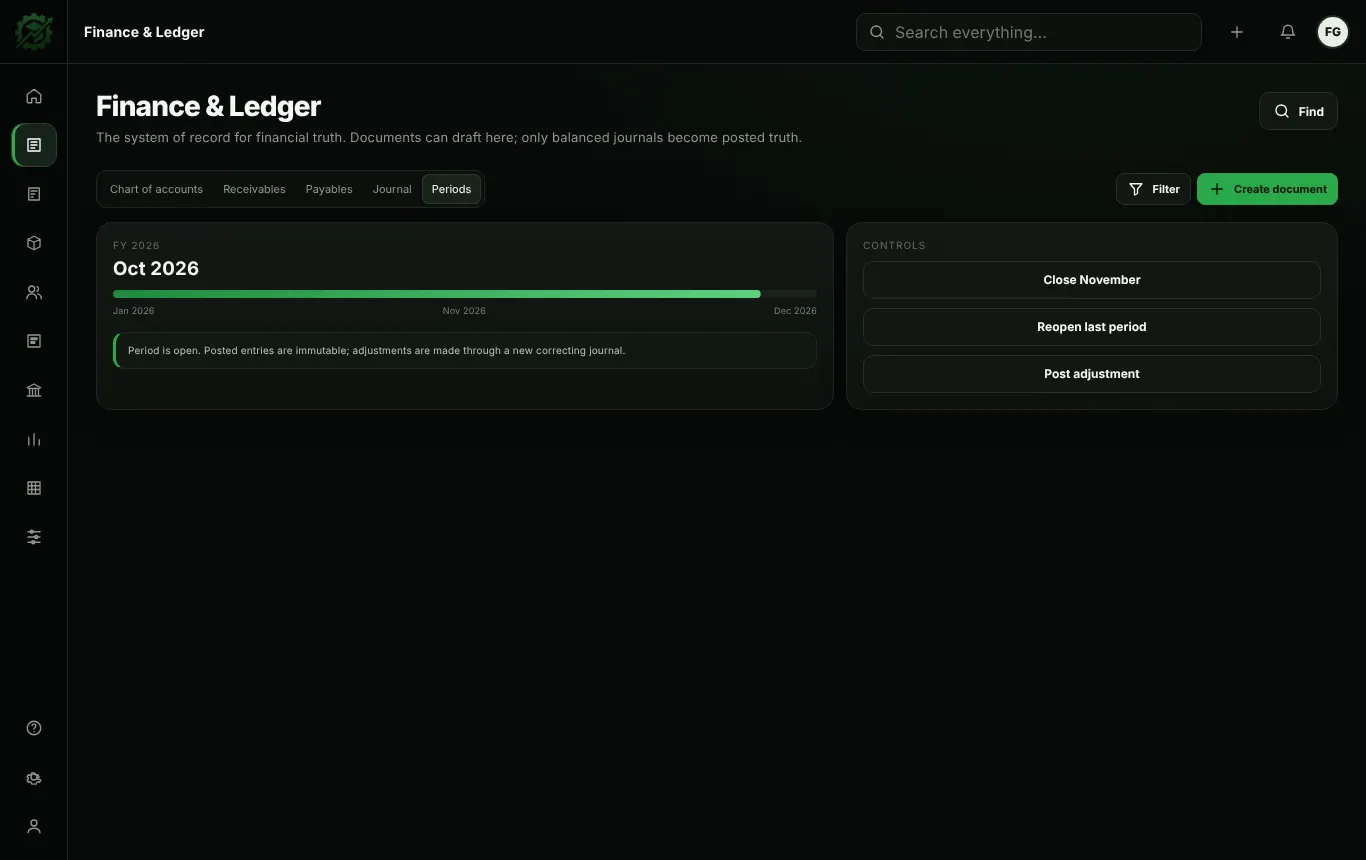
Periods are the months of the financial year. While a period is open, documents dated in it post into it. Closing a period stops anything more from posting into it.
- Open Finance & Ledger and choose Periods.
- To close the month, choose Close and the month's name, then confirm. Keep period open cancels.
- If a closed period must be opened again, choose Reopen last period. This is a control action and is recorded in the audit trail.
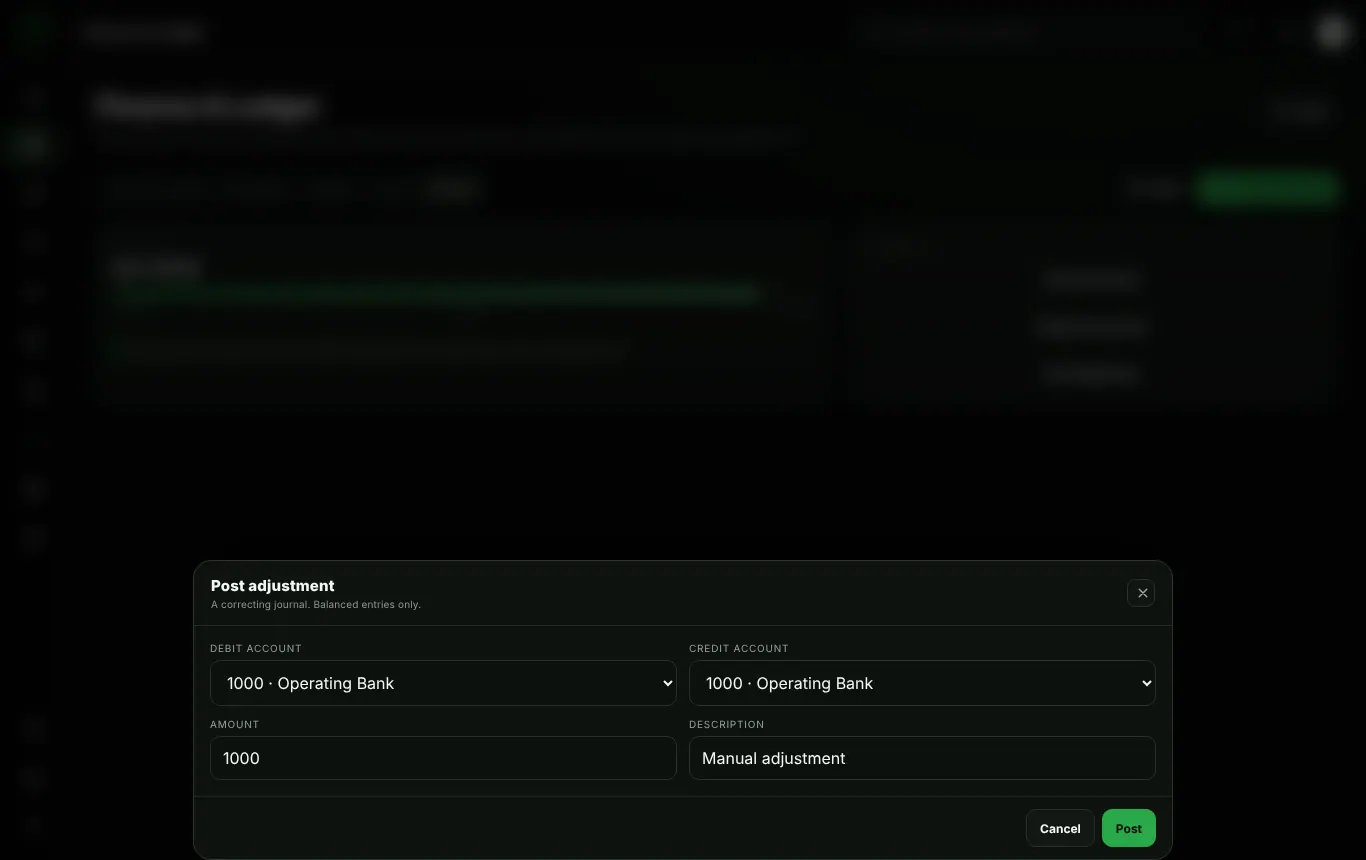
- To correct the books, choose Post adjustment: choose the Debit account and the Credit account (they must differ), the Amount and a Description of why, then Post.