 ClockWork manual
Cash and Banking
Bank accounts, transactions, importing statements and reconciliation.
7.1Bank accounts
- Open Cash & Banking and choose Add bank account.
- Enter the Account name, the Bank, the Masked account number (for example the last four digits), the Opening balance and the Ledger account it belongs to (usually 1000 Operating Bank).
- Save.
7.2Transactions and statements
- Add transaction records one bank entry by hand: Date, Description, Amount (money out as a negative amount), Status and Bank account.
- Import takes a bank statement as CSV with the columns date, description and amount. Each line becomes a transaction marked Needs review.
7.3Reconciliation
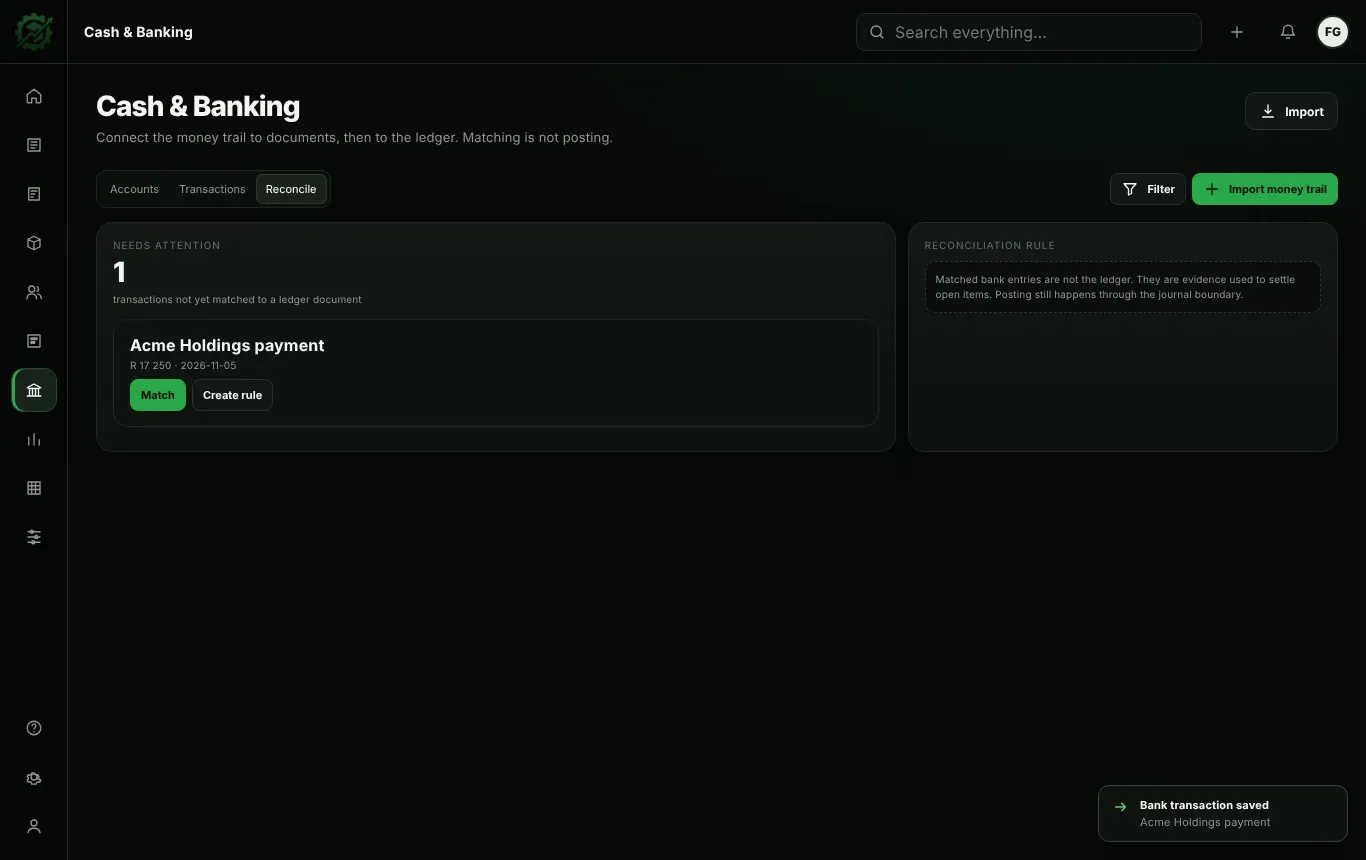
Reconciling connects the money in the bank to the documents in the books. A matched bank entry is evidence that settles an open invoice or bill; posting still happens through the document's payment.
- Open Reconcile. Entries not yet matched are listed under Needs attention.
- Choose Match on an entry and pick the invoice, bill or payment it belongs to.
- For entries that repeat (bank charges, a monthly subscription), choose Create rule so future entries like it are matched for you.
7.4Bank payment files
A posted pay run can be paid with a bulk payment file (see G.3). These formats are offered:
| Format | Use with | How sure |
|---|---|---|
| ACB (Bankserv) fixed width | FNB, Nedbank, Capitec and other South African banks that take a Bankserv ACB file | Laid out to the published BankservAfrica ACB payment file format. Payroll vendors document that FNB, Nedbank and Capitec import this file. It has not yet been proven by a live upload at each bank, so check the first one with your bank. |
| Generic CSV | Any bank or accounting package that lets you map columns on import | ClockWork's own layout, below. |
| Standard Bank CSV, Absa CSV | Their bulk payment import screens | Generic layout, not verified: neither bank publishes its import layout. Map the columns when you import, or ask the bank for its template. |
- ACB: records of 180 characters ending in CRLF, in the order installation header (02), user header (04), contra (12, your paying account and the payment date), one transaction (10) per person, user trailer (92) and installation trailer (94). Amounts are in cents. Account types: 1 cheque, 2 savings, 3 transmission. An account number longer than 11 digits goes in the non-standard account field. The reference (up to 20 characters) and the account holder (up to 15) are in capitals.
- Generic CSV: one header row, comma separated, UTF-8, with the columns Beneficiary name, Bank, Branch code, Account number, Account type, Amount, Reference, Employee number. Amounts are in rands and cents, such as 12500.00.
- Standard Bank CSV and Absa CSV: no header row, with the columns Account holder, Branch code, Account number, Account type code, Amount, Reference.
7.5The bank connector
Approved batches are held so banking software, an accounting package or your own script can collect them, instead of someone downloading and uploading the file.
- Call the ClockWork commands on the Ocalt gateway:
POST https://app.ocalt.com/apiwithidentity,password(an API key from your account),app=clockwork,cmdandargs(JSON). bank_batcheslists the approved batches not yet collected:{"batches":[{"bid","run","period","format","filename","currency","total","count","action_date","approved_by","approved_at"}]}. It holds no account numbers.bank_batchwith{"id":"..."}returns one batch's file:{"id","period","format","filename","currency","total","count","actionDate","content","encoding"}.contentis the file in base64 (encodingis"base64") so its CRLF line endings arrive intact: decode it and import it as the payment file.bank_batch_ackwith{"id":"...","ref":"..."}marks it collected, records your reference and erases the stored file. The pay run in ClockWork then shows Collected.
To be told when a batch is approved instead of asking, enter a Connector webhook (an https address) in the Prepare bank batch window. On approval ClockWork sends it a POST with this body, which never contains account numbers:
{"event":"payroll.batch.approved",
 "batch":{"id","run","period","format","filename","currency",
          "total","count","actionDate","approvedBy","approvedAt"},
 "pull":{"app":"clockwork","cmd":"bank_batch","args":{"id":"..."}}}
From OcaltQL, the same list is:
SELECT COLUMNS "bid" AND "period" AND "filename" AND "total" AND "count"
  FROM DB "clockwork" TABLE "bank_batches"
  WHERE "status" IS IDENTICAL TO "Approved" SET ?b
AFTER EMIT ?b