 ClockWork manual
People: HR and payroll
People records, the organisation, recruitment, on and offboarding, time, leave, payroll, filings, performance, learning, benefits and HR reports.
5.1Countries and entities
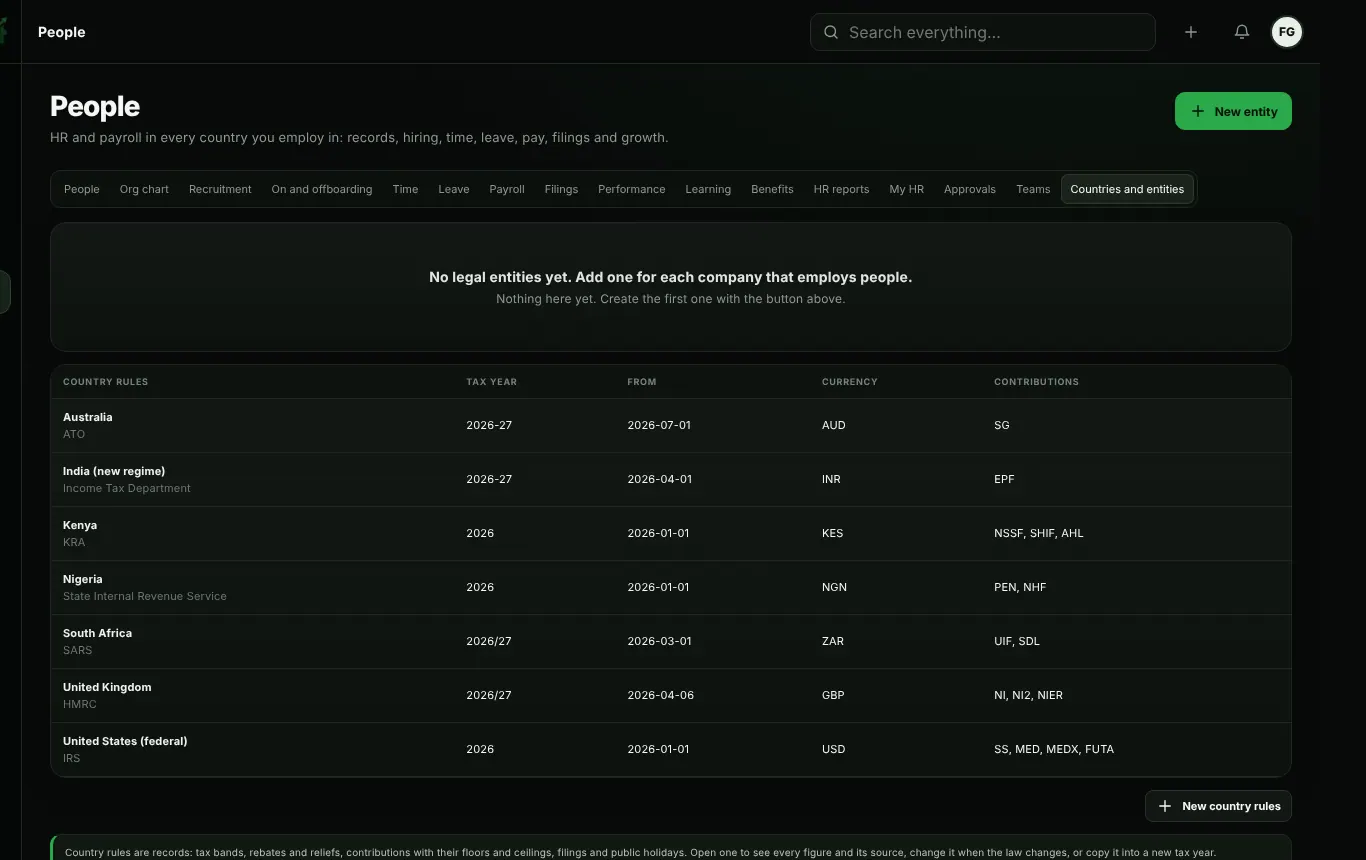
Payroll follows each person's country. ClockWork carries payroll rules for South Africa, the United Kingdom, the United States (federal), Nigeria, Kenya, Australia and India (new regime): tax tables for the tax year, contributions and minimum leave. A legal entity is a company that employs people; it pays in its currency under its country's rules.
- Open People and choose Countries and entities.
- Choose New entity: the Name, Country, Currency, Registration number, Employer tax reference and Address, then Save.
- For a country ClockWork does not carry yet, choose New country rules and enter its tax year and rates.
5.2People
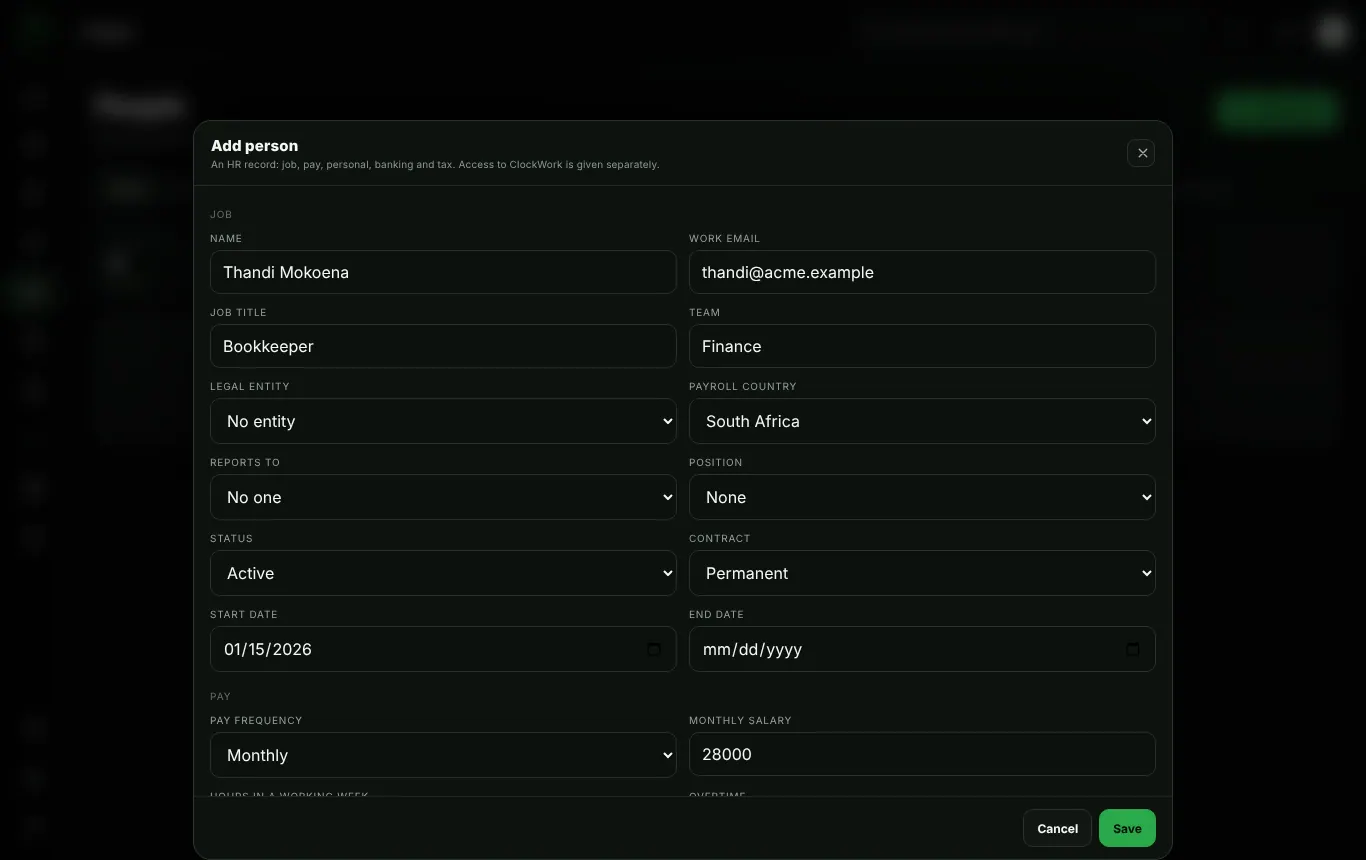
- Choose Add person on the People tab.
- Enter the Name, Work email (the email they sign in with, which links them to My HR), Job title, Team, Legal entity, Payroll country, who they Report to, their Position, Status, Contract, Start date and, for a fixed term, the End date.
- For pay: the Pay frequency, Monthly salary, Hours in a working week, whether they are paid Overtime, the Pension percentages for employee and employer, and any country items (filing status in the United States, annual rent paid for Nigeria's rent relief).
- Leave Annual leave days blank to use the country minimum. Add Other monthly deductions and Allowances, one a line, for example Housing: 2500, adding (non-taxable) where it is.
- Save. An onboarding checklist is started for a new starter.
5.3Org chart and positions
The Org chart shows positions and who holds them, under who they report to. Choose New position for a seat in the organisation: its Title, Team, Grade, who it Reports to and who it is Held by (or Vacant).
5.4Recruitment
- Choose New vacancy on the Recruitment tab: the Title, Team, Legal entity, Location, number of Openings, Salary range, Hiring manager, Status and Description.
- Add each candidate with Add applicant: Name, Email, Phone, the Vacancy, the Source, where the CV is in your Ocalt files, and a Rating from 1 to 5.
- Move applicants through the stages from their record (applied, interviews, offer); an accepted offer becomes a person and starts onboarding.
5.5On and offboarding
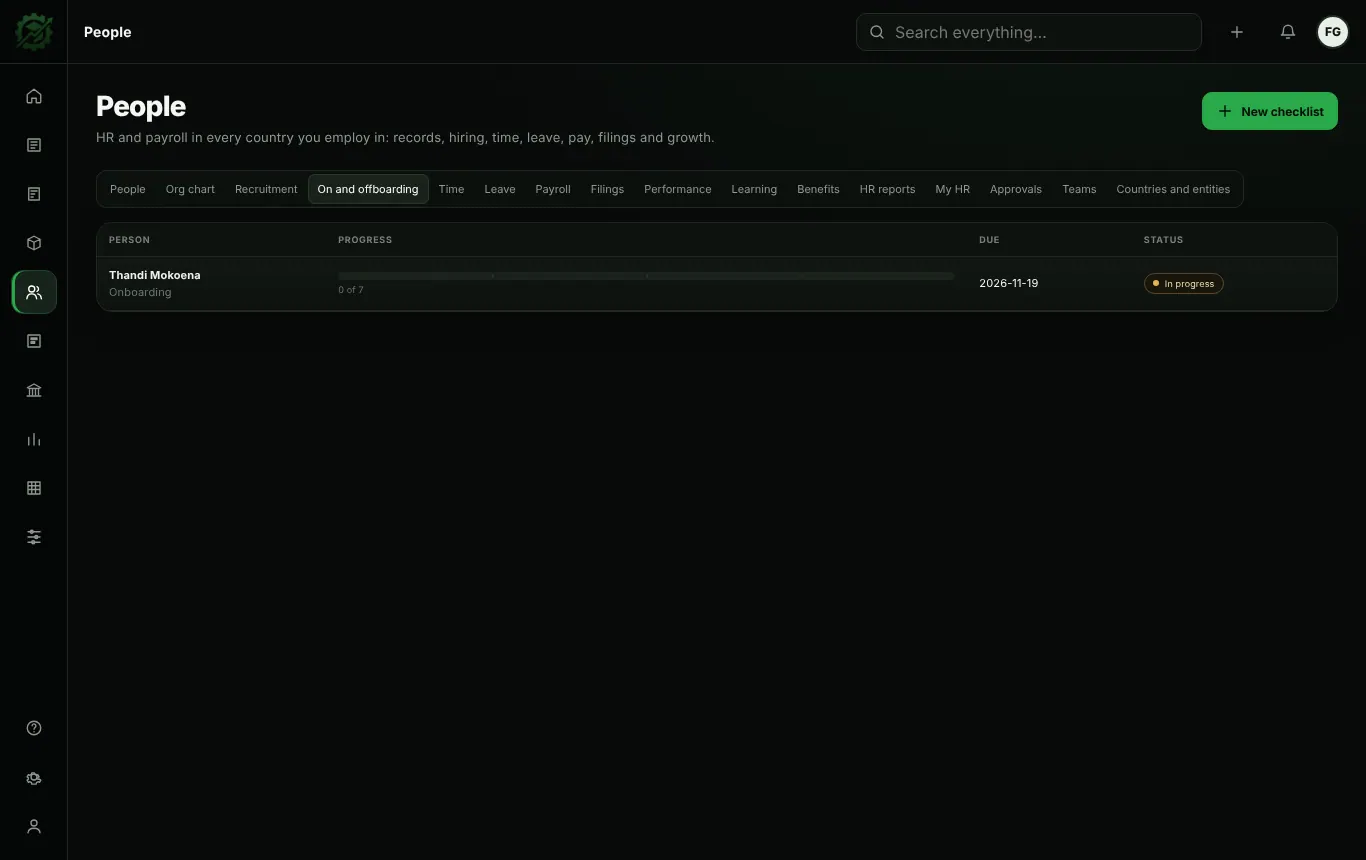
Each starter gets a checklist of what must happen before and after their first day, with a due date. Tick items off on the checklist; its progress shows here. Leaving is the same: Start offboarding from a person's record makes the leaver's checklist (returning equipment, final pay, access removed).
5.6Time
The Time tab shows, for the dates chosen with From, To and Show, each person's hours logged on projects, their standard hours and their overtime. Hours above the standard week are overtime and are brought into the next pay run for people paid overtime.
5.7Leave
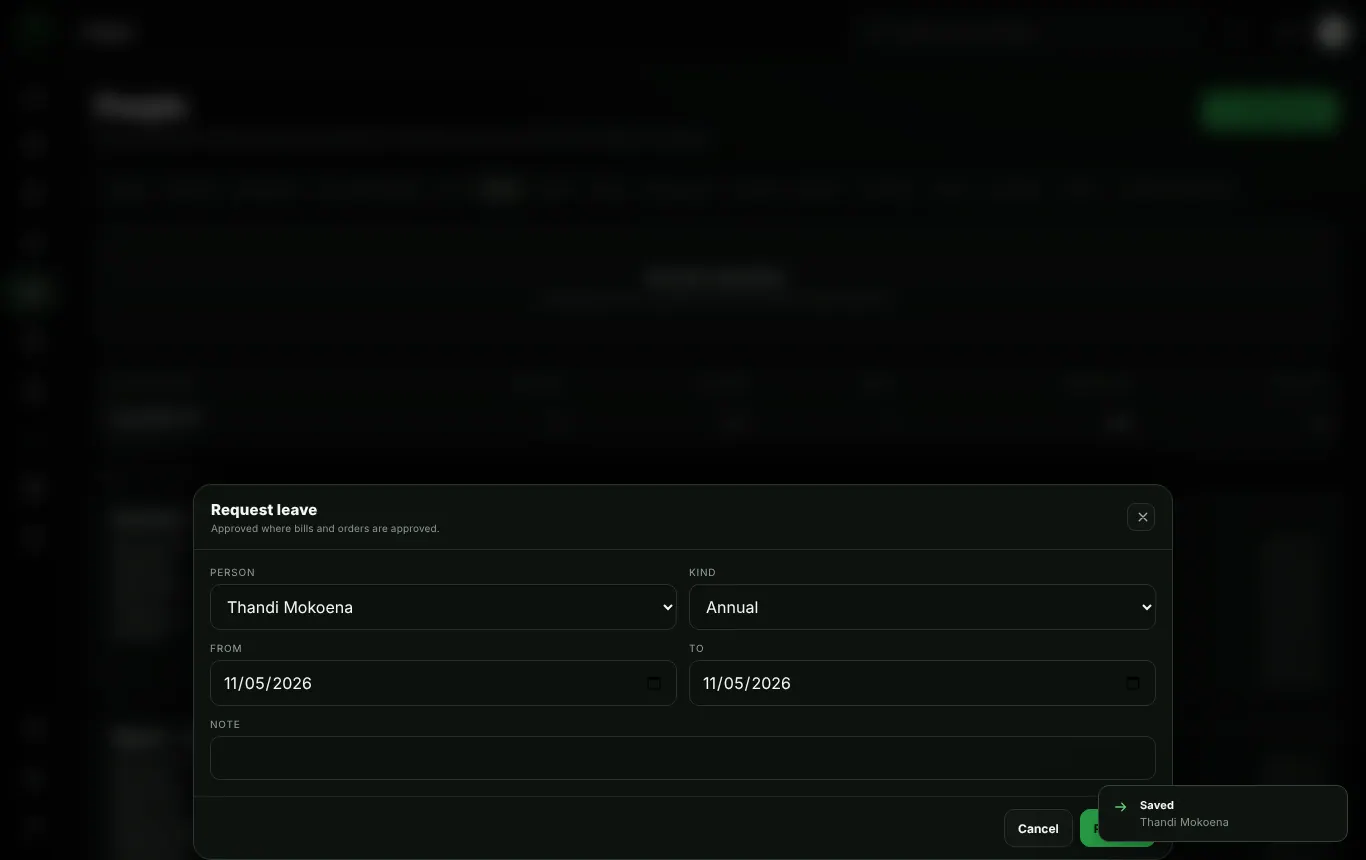
- Choose Request leave.
- Choose the Person, the Kind (Annual, Sick, Family, Study or Unpaid), the From and To dates and a Note.
- Choose Request. The request waits in Approvals and, once approved, comes off the person's balance. Unpaid leave reduces the next pay run.
5.8Payroll
- Choose New pay run on the Payroll tab.
- Choose who to Pay (a legal entity, or people with no entity), the Frequency (monthly, fortnightly, weekly), the Period from and Period to, the Pay date and, for an entity paying in another currency, the Exchange rate to the books' currency (1 when it is the same).
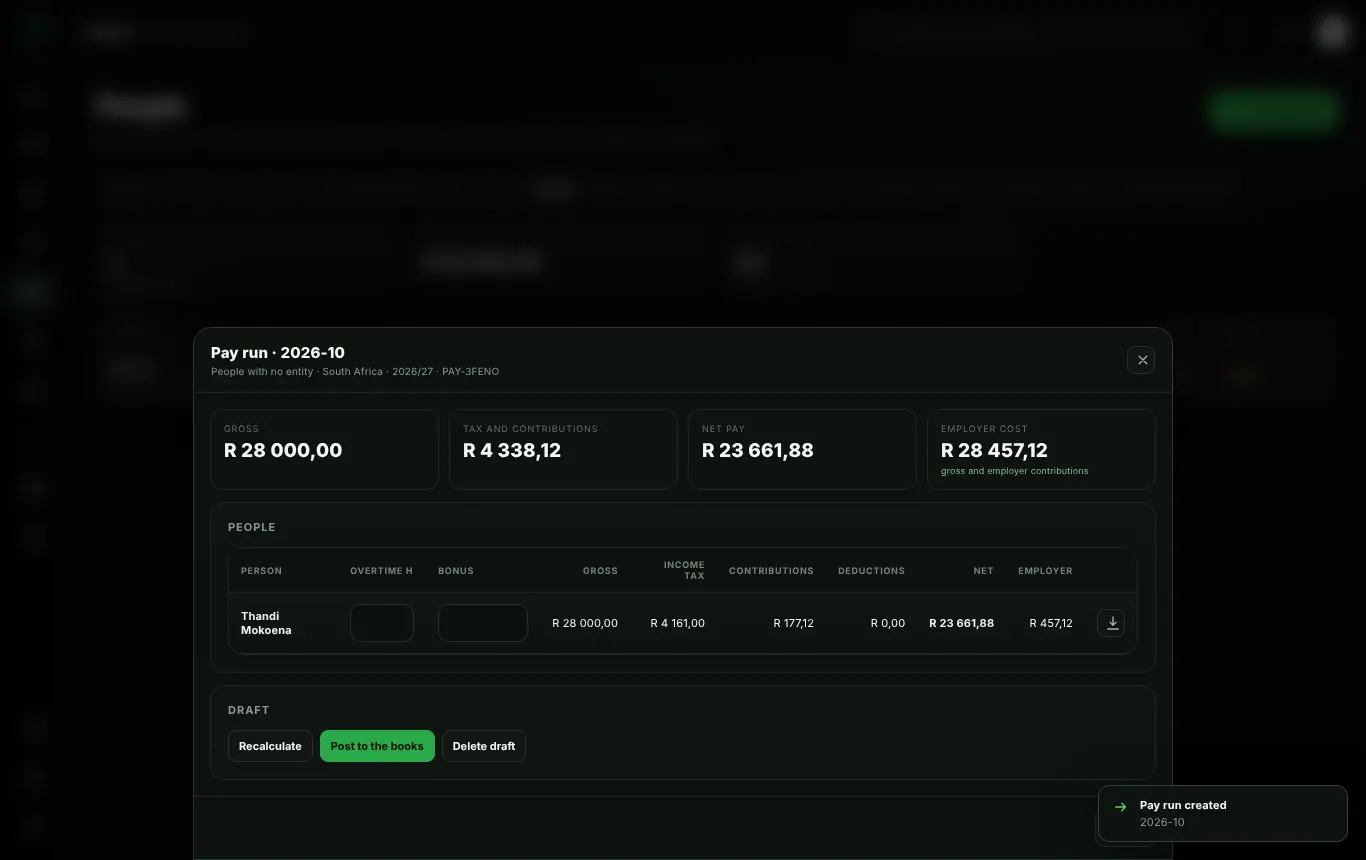
- Choose Create. The run is worked out under each person's country rules: gross pay, income tax, contributions, deductions, net pay and the employer's cost. Overtime logged above standard hours is brought in.
- Check each person's line. Enter bonuses and one-off adjustments on the run, then choose Recalculate.
- When it is right, choose Post to the books. Wages, tax and contributions are posted, payslips are made, and the filings for the period appear under Filings. A draft that is not wanted can be removed with Delete draft.
- To pay the wages, choose Prepare bank batch on the posted run, have it approved and download the bank file or let your banking software collect it. See G.3 and 7.4.
5.9Filings
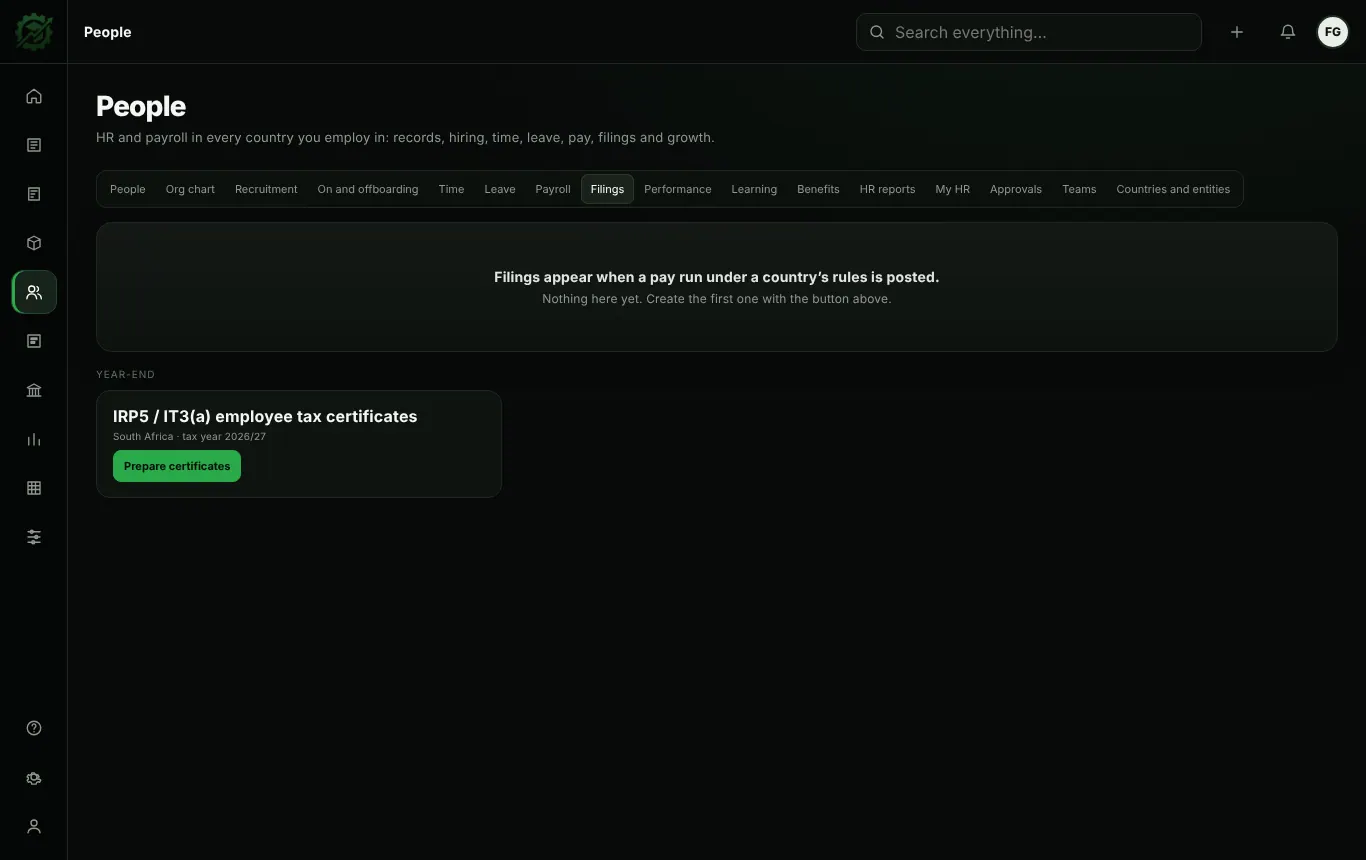
Filings appear when a pay run is posted under a country's rules: the monthly employer return with the tax and contributions to pay. At year end, Prepare certificates makes the employee tax certificates (in South Africa, IRP5 and IT3(a)) for the tax year.
5.10Performance, learning and benefits
- Performance: New review picks the Person, the Cycle (for example the annual review), the Manager reviewing and the Peers asked for feedback for a 360 review. New goal sets a goal with a due date and progress.
- Learning: New training records a course: Title, Provider, Date, Cost, the Skills it gives and the Attendees. The skills are added to each attendee's record.
- Benefits: New benefit records medical cover, a retirement fund, insurance or an allowance: the provider, what the employee and employer pay each period, any taxable value, whether it is deducted before tax, and its members. Benefits feed the pay run.
5.11HR reports, My HR, Approvals and Teams
- HR reports: headcount, joiners and leavers over twelve months, turnover, headcount by team and by country, monthly cost by team, and the leave liability (the days owed to each person and their value).
- My HR: each person's own page, linked by their work email: their payslips, leave balance and requests, and their goals.
- Approvals: everything waiting for a decision: bills to approve and post, leave requests and orders.
- Teams: people grouped by team, with each team's owner.