 ClockWork manual
Sales and CRM
Customer and supplier accounts, the sales pipeline, quotes, activities and sales orders.
3.1Accounts: customers and suppliers
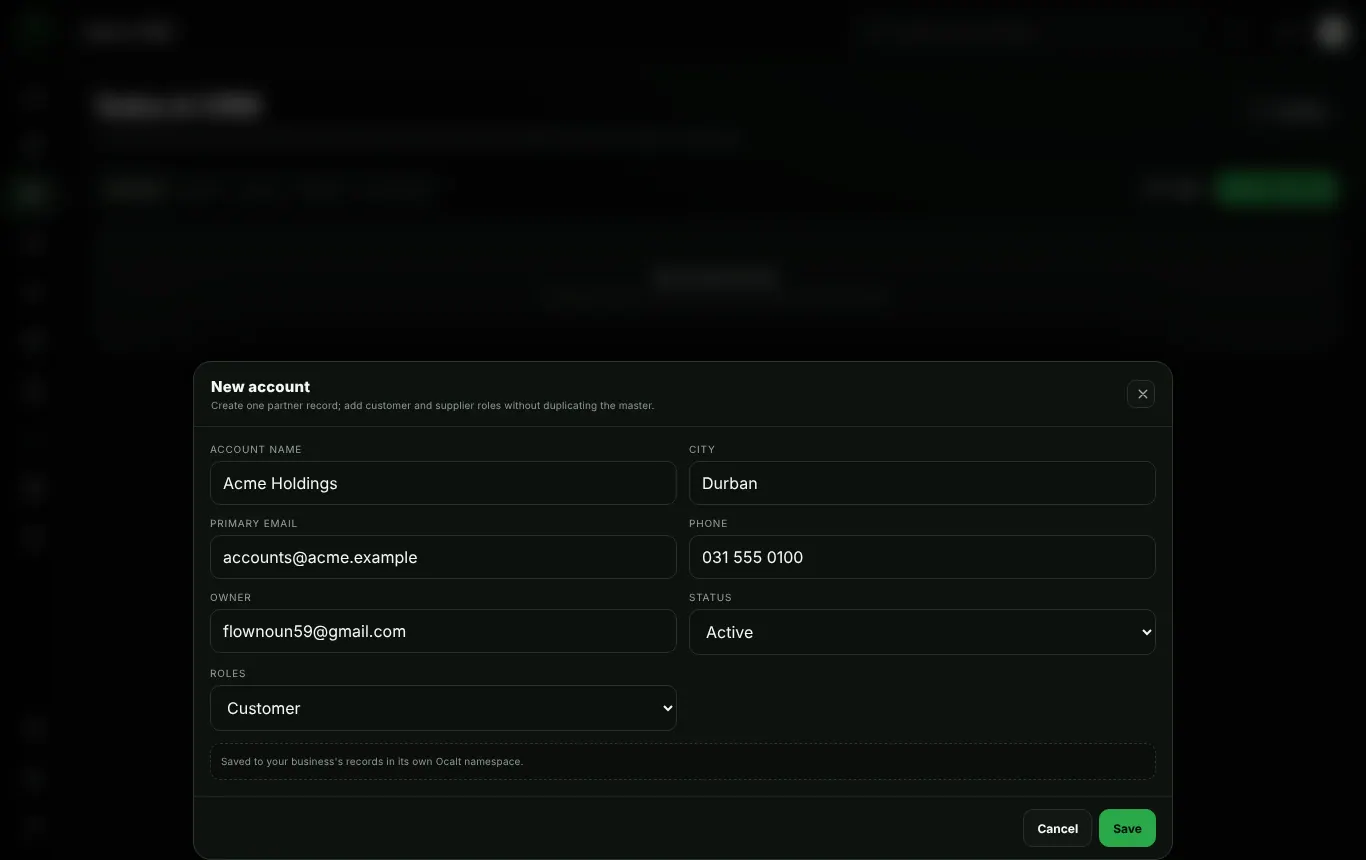
An account is a business or person you deal with. One account can be a customer, a supplier or both (its Roles). Invoices, bills, quotes, orders, payments and activities all hang off the account, so there is one record per party, not one per module.
- Open Sales & CRM and choose Accounts.
- Choose Create record.
- Enter the Account name, City, Primary email and Phone, choose the Owner (who looks after the account), the Status and the Roles (customer, supplier).
- Save.
3.2The pipeline
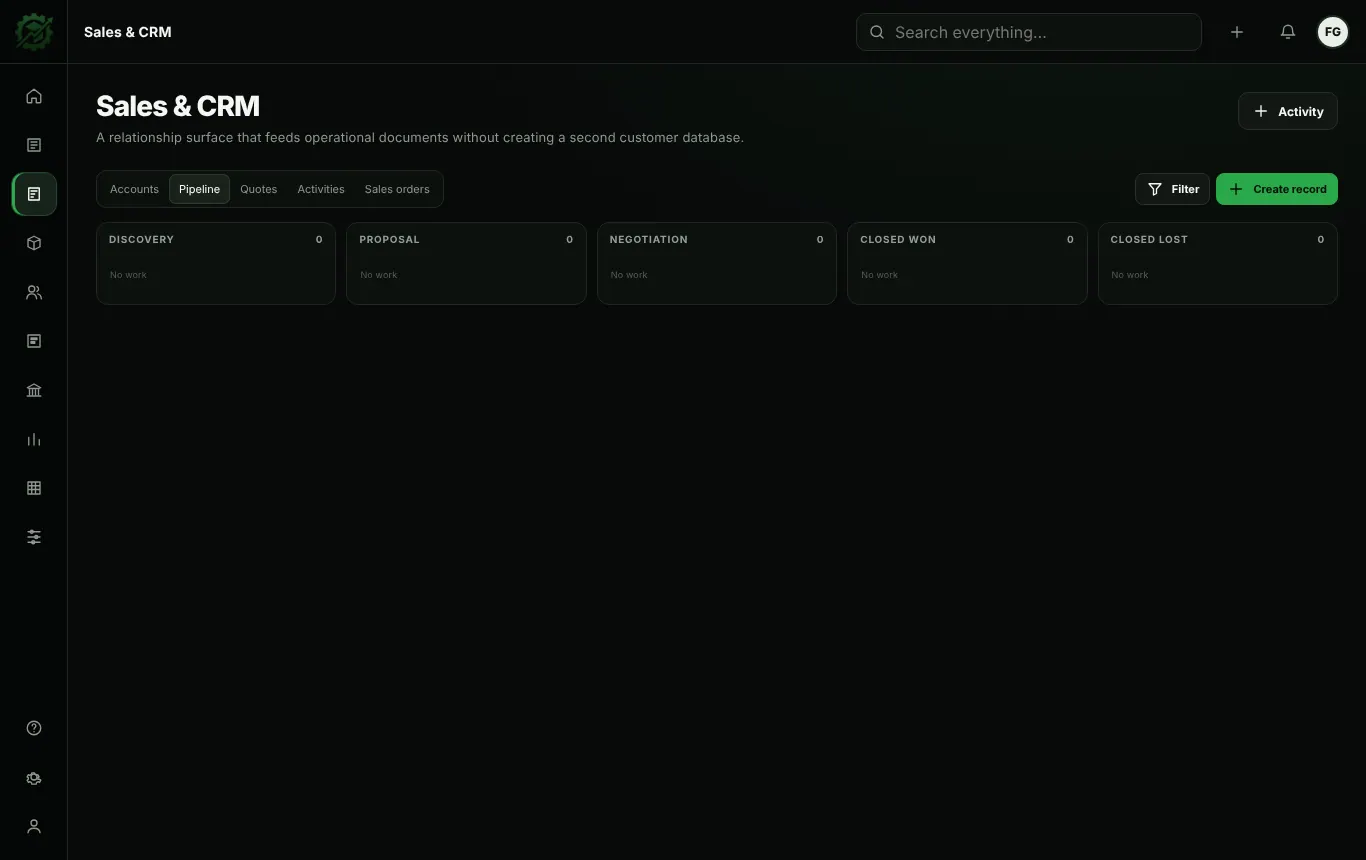
Opportunities are possible sales, each linked to an account. The pipeline shows them in columns by stage with the value in each stage.
- Choose Create record on the Pipeline tab, or New opportunity from +.
- Give the Opportunity name, the account, the value, the expected close date and the stage, and Save.
- Move an opportunity forward by opening it and choosing Convert to next step, or change its stage with Edit.
- When it is won, Convert to sales order turns it into an order with the same account and value.
3.3Quotes
A quote is an offer with lines and prices that the customer can accept. Make it under Quotes with Create record: choose the customer, add lines and save. Print it to send it. An accepted quote converts to a sales order with Convert to sales order, so its lines are not typed twice.
3.4Activities
Activities are the calls, meetings, emails and notes of the relationship. Choose Activity at the top of Sales, or Log activity from +: choose the account, the kind and what happened. Activities show on the account's record and under the Activities tab.
3.5Sales orders
- Open Sales orders and choose Create record (or convert a quote or opportunity).
- Choose the Customer, the Order date and the Status, add the lines, and Save.
- When the goods or work are delivered, open the order and convert it to an invoice. The invoice carries the order's lines and posts as described in Finance.